

Google Pixel 10 Tips & Tricks: 9 Ways To Get More From Your New Phone
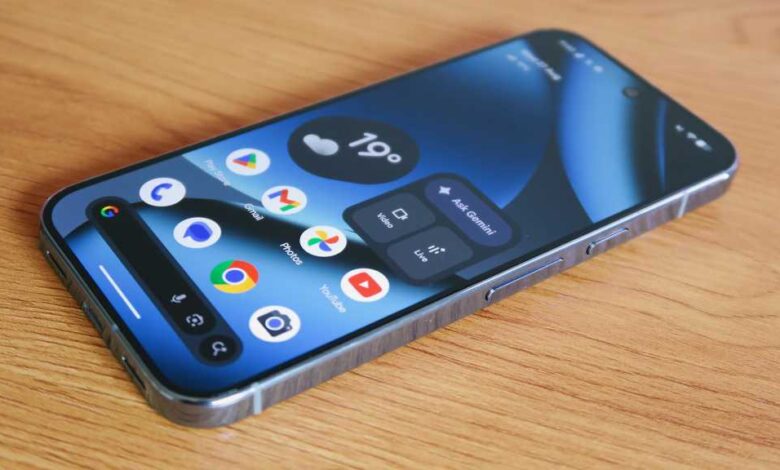
Google has recently launched its newest line of Pixel phones for 2025, and they are packed with amazing features that make them the company’s best phones yet. Whether you are upgrading your phone or switching to Pixel for the first time, there are some handy tips and tricks that can help you make the most out of the Android 16-based experience offered by the Pixel 10 series.
Most of these feature walkthroughs apply to the entire Pixel 10 line, including the Pixel 10, Pixel 10 Pro, Pixel 10 Pro XL, and Pixel 10 Pro Fold. However, there are some upgrades that are exclusive to the new Pro models. Here is a rundown of some of the tips and tricks for the Pixel 10 series:
### Turn Pro Res Zoom on or off
If you have purchased the Pixel 10 Pro or 10 Pro XL, one of the most significant camera upgrades is Pro Res Zoom. This feature enhances the maximum telephoto capture magnification from 30x to 100x. To enable or disable Pro Res Zoom on your Pixel 10 Pro, follow these steps:
– Open the Camera app and tap the Camera Settings icon.
– Tap the icon with three dots in the top-right corner and select Model download.
– Download the Pro Res Zoom model if it is not already downloaded.
– If you want to disable Pro Res Zoom, tap the trash can icon on the Model download screen.
### Create a Calling Card
With the Material 3 Expressive look and feel of Android 16 on the Pixel 10 series, Google has introduced Calling Cards. These personalized full-screen posters for key contacts in your address book allow you to choose specific photos and add custom font styles and colors. To create a Calling Card, open the Contacts app, select a contact, and tap on “Try adding a calling card”.
### Check for AI-altered images with Content Credentials
Google has added image provenance within Google Photos and shots taken using your Pixel 10’s camera to combat misinformation. To check an image’s content credentials, open Google Photos, select an image, and swipe up to view the information about how the image was made.
### Add music to your recordings with AI
The Recorder app on your Pixel 10 now allows you to add AI-generated music to your recordings. Simply open the Recorder app, select a recording, tap the three dots, and choose the Create music option to add music to your recording.
### Listen to this page
The “Listen to this page” feature in the Chrome web browser on your Pixel allows you to have web pages read out to you. Simply open Chrome, tap the three dots in the top-right corner, and select the Listen to this page button.
### Enhanced Now Playing
Now Playing on your Pixel can now automatically display relevant album art with Enhanced Now Playing. To enable this feature, go to Settings, select Sound and vibration, and then tap on Now Playing to toggle on Enhanced Now Playing.
### Enable Advanced Protection
Google’s Advanced Protection suite on your Pixel enhances security by enabling features like theft detection lock and Android Safe Browsing. To enable Advanced Protection, go to Settings, select Security and privacy, and toggle on Device protection under Advanced Protection.
### Empower the power button
You can reassign the functionality of the power button on your Pixel to bring up the power menu by default. Go to Settings, select System, tap on Gestures, and then select Press and hold power button to change it to Power menu.
### Boost display resolution & refresh rate
Maximize image fidelity by switching to Full resolution in the Display and touch settings, and customize the refresh rate by toggling Smooth display on or off.
By following these tips and tricks, you can make the most out of your Pixel 10 series phone and enjoy all the amazing features it has to offer.