

How to delete eSIM on iPhone
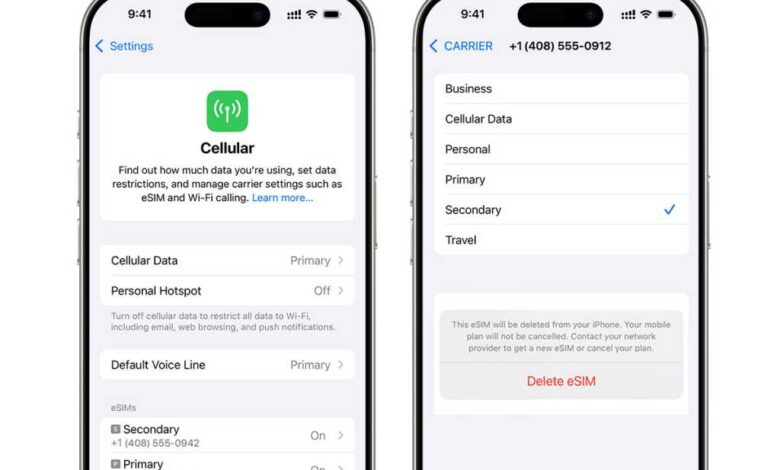
The transition from physical SIM cards to eSIMs has been a significant trend in the mobile industry, especially since the iPhone 14 series where physical SIM slots were completely removed in the US. eSIMs are now becoming more common not just in the US but also in other parts of the world. These eSIMs can either be from your main mobile carrier or from a third-party provider used for temporary purposes, such as avoiding roaming charges while traveling.
There are various reasons why you might need to delete an eSIM from your iPhone. For instance, when switching to a new carrier, it is necessary to delete the existing eSIM before setting up a new one. Similarly, if you are upgrading to a new iPhone, you will need to delete the eSIM from your old device before transferring it to the new one. Deleting the eSIM before selling your old iPhone is also important to protect your personal information and privacy, as well as to make the transition smoother for the new owner. Additionally, if you have an eSIM that is no longer needed or operational, streamlining the number of eSIMs on your phone can simplify matters.
It is important to note that when you delete an eSIM from your iPhone, you are actually deleting the eSIM profile and not the eSIM itself. An eSIM, or Embedded SIM, is built directly into the iPhone and can be reprogrammed to accept different providers. Deleting the eSIM profile simply erases the stored data associated with that specific eSIM, making it seem as though the eSIM never existed.
Before proceeding to delete an eSIM from your iPhone, there are a few things to consider. Ensure that you have internet access to download a new eSIM profile, either through a cellular connection or a Wi-Fi network. It is also advisable to check with the eSIM carrier whether deleting the eSIM will cancel your cellular plan and to understand the process for cancellation. Deleting an eSIM will remove the associated phone number and service from your iPhone, so consider deactivating it instead if you think you might need it in the future.
To delete an eSIM from your iPhone, follow these simple steps:
1. Go to Settings on your iPhone.
2. Click on Cellular (or Mobile Service in the UK).
3. Select the eSIM plan you wish to remove from the list of installed eSIM profiles.
4. Tap “Delete eSIM” for iPhones with a single eSIM plan, or “Delete Plan” for devices with multiple eSIMs. Confirm your selection, and the eSIM profile will be immediately removed from your device.
With these steps, you can easily delete an eSIM from your iPhone and manage your eSIM profiles efficiently. Remember to consider the factors mentioned above before deleting an eSIM to ensure a smooth transition and avoid any unexpected charges or issues.