
iPhone 17 Top Tips & Tricks: Hidden Features & Settings
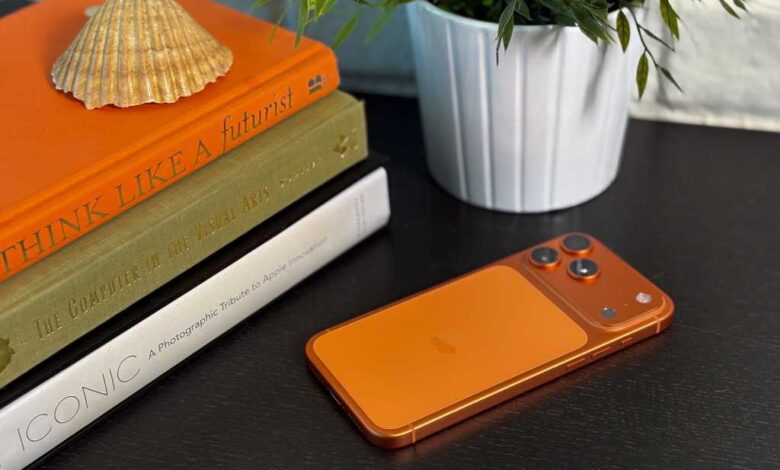
The iPhone 17 series has been making waves with its innovative features and stunning design. With the latest iOS 26 user experience, Apple has introduced some exciting changes that enhance the overall functionality and user experience of the device. In this comprehensive guide, we will explore some essential tips and tricks to optimize your iPhone 17 series experience.
Customize the Lock Screen Clock
With iOS 26, Apple has introduced new customization options for the lock screen clock. You can now scale the clock, choose different fonts and colors, and even toggle between the Liquid Glass aesthetic and the traditional flat appearance. To customize the lock screen clock, simply press and hold on a blank area of the lock screen, tap customize, and adjust the clock to your preference.
Spatial Scene Lock Screen
iOS 26 also introduces Spatial Scenes, a 3D effect that can be applied to your lock screen. By selecting a compatible image, you can create a dynamic lock screen experience with a faux 3D effect. To enable Spatial Scenes, head to Settings, choose a lock screen image, and tap the Spatial Scenes icon to create a captivating lock screen display.
Faster Haptics for a Better Feel
Enhance the haptic feedback on your iPhone 17 series by adjusting the Haptic Touch settings. By selecting a faster haptic touch duration, you can make your device feel more responsive and snappier. Simply navigate to Settings, Accessibility, Touch, and adjust the Haptic Touch duration to your preference.
Hidden Keyboard Shortcuts
Unlock the hidden features of the iOS keyboard by utilizing long-press gestures. From capitalizing letters to accessing numbers and emojis, you can streamline your typing experience with these hidden shortcuts. Long-press on keys to reveal hidden functionalities and enhance your typing efficiency.
Disable Control Centre on Your Lock Screen
Protect your device from potential theft by disabling Control Centre access on the lock screen. By navigating to Face ID & Passcode in Settings, you can prevent unauthorized access to Control Centre from the lock screen. This security measure ensures that your device remains secure even if it falls into the wrong hands.
Set a Custom Ringtone
Personalize your device by setting a custom ringtone. With the ability to use your own audio files as ringtones, you can add a unique touch to your iPhone experience. Simply download the audio file to the Files app, select the file, and choose the option to set it as a ringtone.
Battery Percentage
Keep track of your device’s battery life by enabling the Battery Percentage display. By accessing the Battery settings and toggling on the Battery Percentage option, you can monitor your device’s charge level more accurately. This feature allows you to stay informed about your battery status and optimize your usage accordingly.
Set a Charge Limit
Extend the longevity of your device’s battery by setting a charge limit. By limiting the charge level to 80% or lower, you can preserve the overall health of your battery and increase its lifespan. Enable the Charge Limit feature in the Battery settings to ensure optimal battery performance.
Enable Adaptive Power Mode
Optimize your device’s power management by enabling Adaptive Power Mode. This feature adjusts power settings dynamically based on your usage and power demands, ensuring efficient battery usage and enhanced performance. Enable Adaptive Power Mode in the Battery settings to take advantage of this intelligent power-saving feature.
Turn on Vehicle Motion Cues
Reduce motion sickness while using your device in a moving vehicle by enabling Vehicle Motion Cues. This accessibility feature adds motion cues to the screen, helping to alleviate nausea and discomfort while traveling. Enable Vehicle Motion Cues in the Accessibility settings to improve your in-car device experience.
Make Apple Intelligence More Intelligent
Enhance the AI experience on your device by enabling ChatGPT integration. By accessing the Apple Intelligence & Siri settings and enabling ChatGPT, you can enhance your device’s AI capabilities and access advanced chat features. Integrate ChatGPT into your iOS experience for a more intelligent and interactive AI assistant.
4K 60fps Video by Default
Capture high-quality video with your iPhone 17 series by setting 4K 60fps video as the default resolution and frame rate. By adjusting the video recording settings in the Camera app, you can ensure that your videos are recorded in stunning 4K resolution at 60 frames per second. Upgrade your video recording experience with this simple setting adjustment.
Add a Grid and Level to Your Camera
Improve your photography skills with the Grid and Level features on your device’s camera. By enabling the 3×3 grid and level indicators, you can enhance your framing and composition while capturing photos and videos. Access these features in the Camera settings to unlock new creative possibilities and improve your photography skills.
Disable Macro Control
Optimize your photography experience by disabling Macro Control on your device. Prevent the automatic switch to Macro Mode when capturing close-up shots and maintain control over your camera settings. By disabling Macro Control in the Camera settings, you can take more control over your photography and achieve better results.
By implementing these tips and tricks, you can enhance your iPhone 17 series experience and make the most of the innovative features and functionalities offered by Apple’s latest devices. Experiment with these settings and features to personalize your device and optimize its performance for your specific needs. Enjoy a seamless and efficient user experience with your iPhone 17 series.